Instagram Downloader for iPhone
Download Reels, videos, photos and stories on iPhone straight from Safari or Chrome - no app to install.
No login. We never store your files or your links.
- No app needed
- Safari & Chrome
- iOS 13+
- Free
How to download Instagram content on iPhone
-
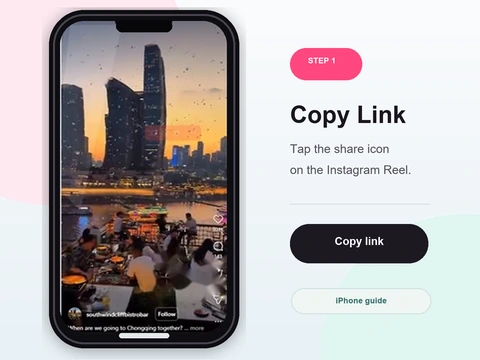 Step 1
Open Safari or Chrome
Launch your browser on iPhone and go to Reels Downloader.
- Open Safari or Chrome on your iPhone and go to Rells Downloader.
- No App Store download is needed - everything runs in the browser.
- Works on any iPhone running iOS 13 or later.
-
 Step 2
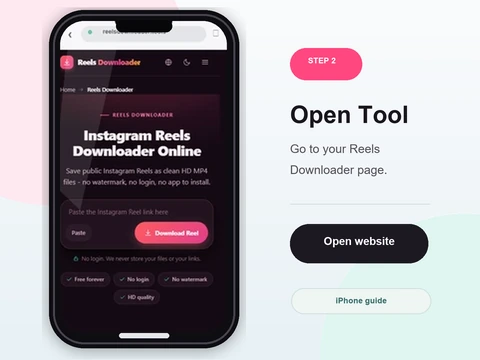
Copy the Instagram link
In the Instagram app, tap Share then Copy Link.
- In the Instagram app, tap Share then Copy Link on the post or Reel.
- Return to your browser and paste it into the box using the Paste button.
- Check the full link is in the field before continuing.
-
 Step 3
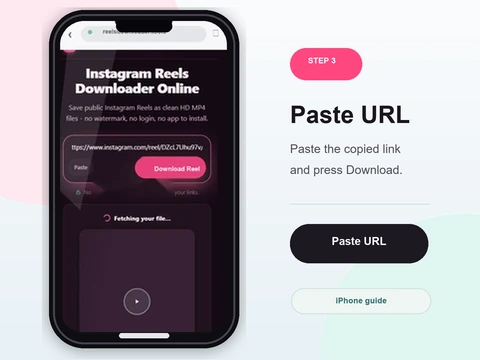
Paste and tap Download
Drop the link into the box and tap Download.
- Tap Download and wait a second for the preview.
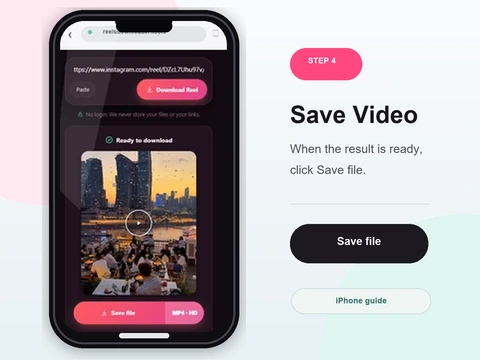
- Tap Save on the result to store the HD MP4 with no watermark.
- Reels, videos, photos and public stories all work the same way.
-
 Step 4
Find it in Files or Photos
Saved files land in the Files app Downloads folder, ready to move to Photos.
- In Safari, the file appears in the Files app under Downloads.
- Tap and hold it, then choose Save Video to move it into your Photos Camera Roll.
- In Chrome, use the download menu, then open Photos to keep the clip.
Made to work on iOS
No app install
Runs entirely in your mobile browser - nothing to download from the App Store.
HD downloads
Reels and videos save in full quality with no watermark.
No login
No Instagram credentials, no sign up.
Works on any iPhone
Compatible with any iPhone running iOS 13 or later.
Where downloads save on iPhone
In Safari, files go to the Files app under Downloads. In Chrome, use the download menu to save the file, then open Photos to keep videos in your Camera Roll. From the Files app you can move any download into Photos with a couple of taps.
iPhone downloader FAQ
Does Reels Downloader work on iPhone?
Yes. Open Reels Downloader in Safari or Chrome on your iPhone - no app installation required.
Do I need to install an app?
No. Reels Downloader runs entirely in your browser.
Where do downloads save on iPhone?
In Safari, files go to the Files app Downloads folder. In Chrome, use the download menu to save them.
Does it work on older iPhones?
Yes. Any iPhone running iOS 13 or later with Safari or Chrome is supported.
Can I download to my Camera Roll?
Yes. After downloading, open the Files app and move the file to Photos.
Is it free on iPhone?
Yes, completely free with no app purchase.
Public content only
Reels Downloader works exclusively with public Instagram posts. We do not store your downloads, we do not save your links, and we are not affiliated with Instagram or Meta. You are responsible for respecting copyright and the platform rules for any content you download.